



Can I use my iPhone as a trackpad for my Mac?
Yes. On the same Wi-Fi, MuseTap turns your iPhone into a trackpad, keyboard, and media remote for a Mac. Install HiMuseTap on the Mac first. MuseTap runs on iPhone, not on iPad.

Requirements: macOS 13+, iOS 17+
1. Double-click HiMuseTap_Installer
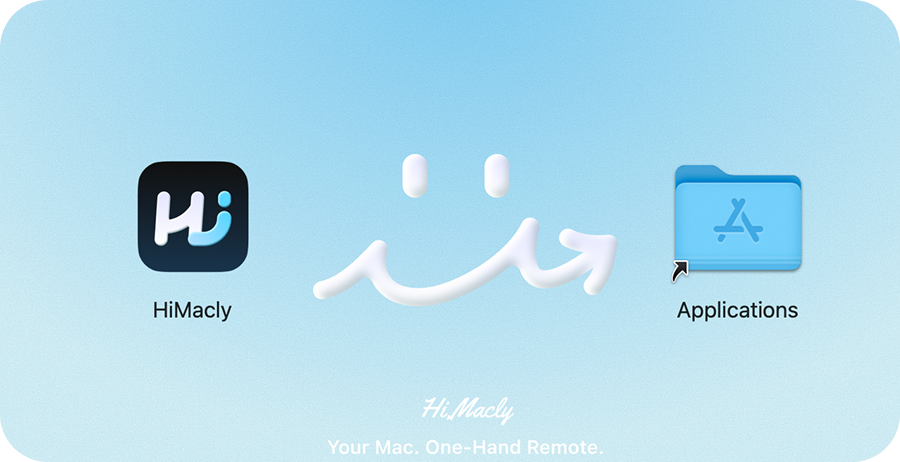
2. Drag HiMuseTap App to Applications
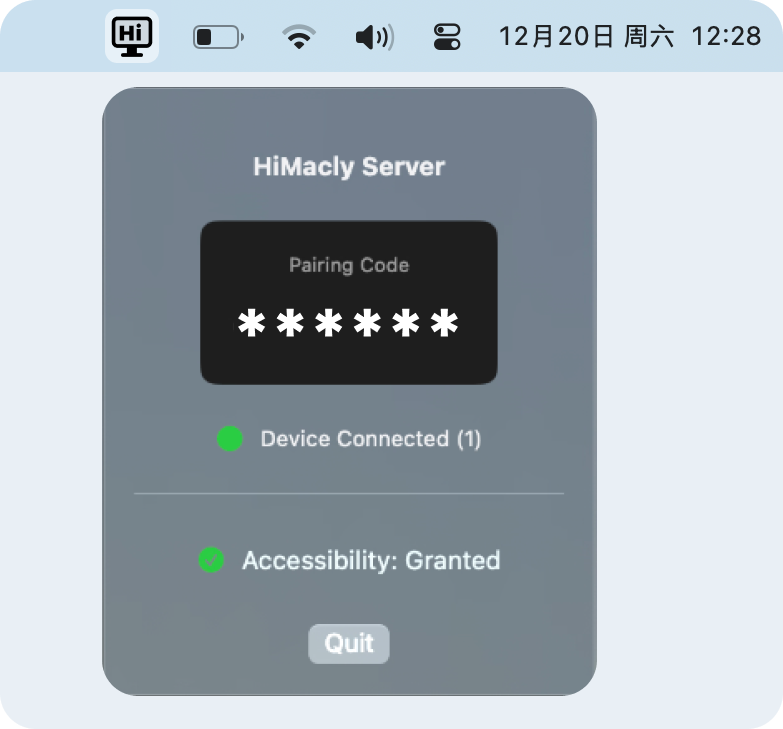
 in your Mac's menu bar

Mac remote control app

Your Mac, one-hand remote.
Install HiMuseTap on your Mac, grant permissions, then pair MuseTap on your iPhone over the same Wi‑Fi.
Requirements: macOS 13+, iOS 17+
1. Double-click HiMuseTap_Installer
2. Drag HiMuseTap App to Applications
in your Mac's menu bar
Yes. On the same Wi-Fi, MuseTap turns your iPhone into a trackpad, keyboard, and media remote for a Mac. Install HiMuseTap on the Mac first. MuseTap runs on iPhone, not on iPad.
No. A Mac does not include a built-in way to use an iPhone as its trackpad. MuseTap needs the iPhone app and HiMuseTap on the Mac.
No. It works with a Mac that meets the system requirements, including a Mac mini, iMac, or MacBook.
An iPhone with iOS 17 or later, and a Mac with macOS 13 or later. The iPhone and Mac must be on the same local network. The first time you open HiMuseTap, macOS asks for Accessibility access so it can move the pointer and type.
Install HiMuseTap on the Mac and MuseTap on the iPhone, then join the same Wi-Fi. You can let MuseTap find the Mac, scan the QR code on the Mac, or enter the 6-digit pairing code. After pairing succeeds, that Mac is saved for the next connection. A guest or isolated Wi-Fi can stop the two devices from seeing each other.
You can move the pointer, left-click, right-click, and scroll with two fingers. You can change the volume, open apps, open web pages, toggle fullscreen, refresh a page, and focus the address bar. Shortcut buttons can open apps, web pages, or system actions. Each Mac keeps its own shortcut layout.
Yes. On the same Wi-Fi, you can control music playing on your Mac from your iPhone with play, pause, and volume. You can also open the music app and use the trackpad in it.
On the same Wi-Fi, you can control these Mac apps from your iPhone when that app is in front: Figma, Photoshop, Illustrator, Lightroom, CapCut, Cursor, VS Code, Xcode, Claude, and the ChatGPT app on the Mac. The trackpad and keyboard control the app, and its shortcuts make the remote control more efficient.
Yes. When you click an input area on the Mac, MuseTap opens the keyboard and a matching input area on your iPhone. When you finish, the text is sent to that input area on the Mac.
MuseTap can send a wake signal to a saved Mac that is asleep. Whether the Mac wakes depends on that Mac and your home network. This does not mean a fully shut-down Mac will turn on.
Yes. You can switch remote themes. A theme changes the look of the remote and does not change what the controls do.
No. MuseTap stays on your local network. It does not control the Mac over the internet, it does not go through a cloud relay, and it does not show the Mac screen on your iPhone. Pairing is required. You grant the Mac permissions yourself, and you can turn them off in System Settings.
MuseTap is a one-time purchase at $19.99. There is no subscription, no advertising, and no in-app purchase.